How to Join VRChat Club Events: A Beginner's Guide
A friendly guide for beginners on how to join VRChat club events, fix common audio issues, and enjoy the music on the dance floor.
Step-by-Step Instructions
Join the KEMOCLUB VRChat Group
Search for 'KEMOCLUB' on the VRChat website or in-game Groups menu and join the group.
Configure Audio and Avatar Settings
Turn on 'Allow Untrusted URLs' to hear the stream, and optimize avatar display settings for smooth FPS.
Join the Group Instance at Event Time
When the event starts, open the Groups menu, select the active Group+ instance, and click Join.
Adjust Your Volume and Enjoy the Music
Once inside, adjust the world volume to your liking. Dance, chat with others, or simply soak in the music—enjoy it your way!
Introduction: No Club Experience Required!
“I’m curious about VRChat club events, but I’ve never been to a real-life nightclub before…” “What if I’m not good at chatting or socializing?”
If you’ve had these thoughts, don’t worry at all.
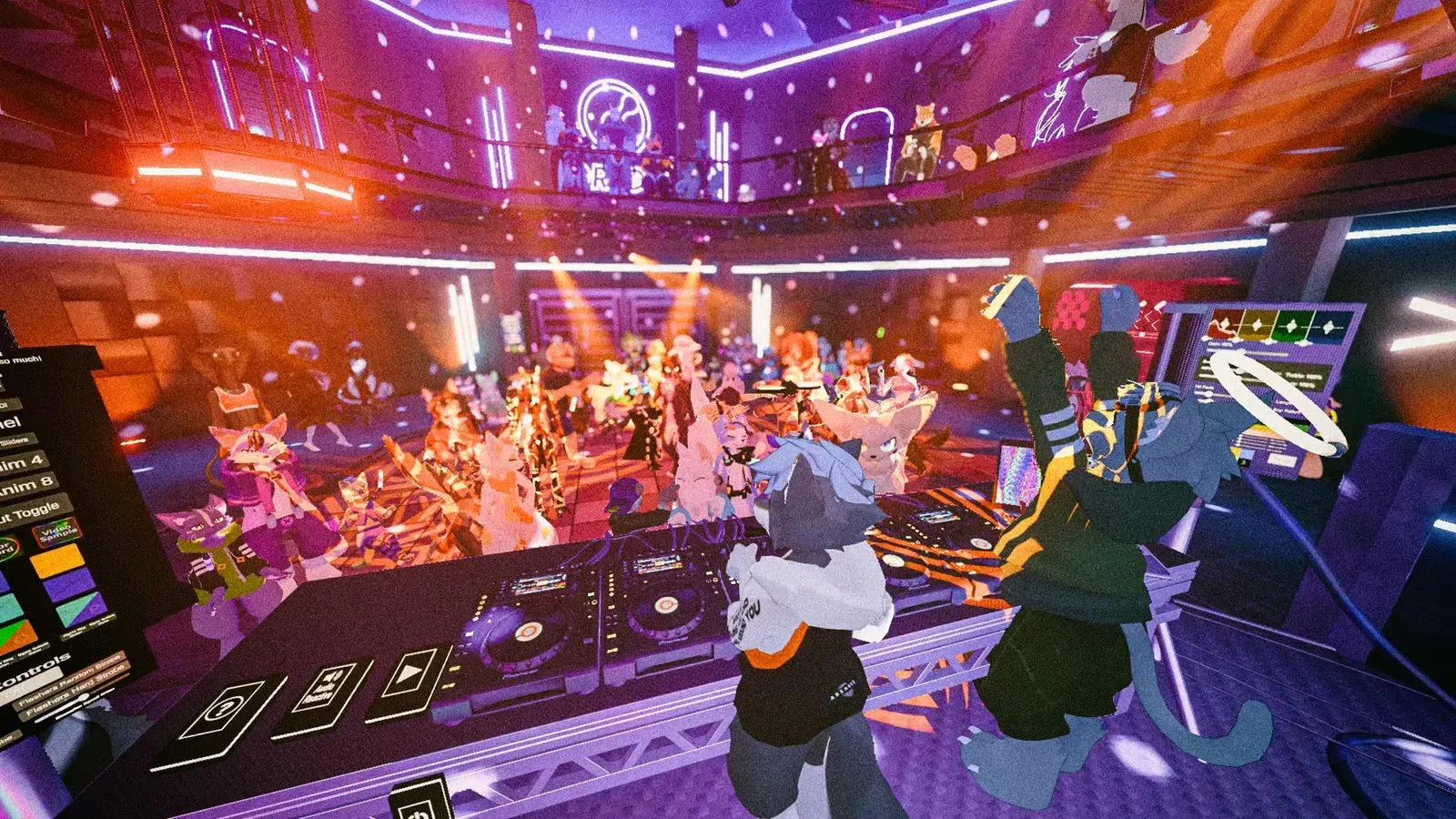
Virtual dance music events in VRChat offer a welcoming, open space with an experience all their own.
At events like KEMOCLUB, many attendees love chatting, dancing, and cheering along with friends to upbeat Top 40 and dance tracks. At the same time, if you prefer to chill and just soak in the sound without talking, that is equally welcome.
There is zero pressure to make small talk, and equally no rule against chatting and having fun. If you ever feel tired, you can log off whenever you like. Enjoy the music, visuals, and company entirely at your own pace.
While KEMOCLUB has its roots in Japanese kemono culture, avatar choice is completely up to you. Humanoid, robot, or default avatars are all totally fine.
Required Setup & Gear
1. Hardware (Desktop or VR)
-
Desktop Mode (No VR Headset)
A standard Windows PC with a keyboard and mouse is all you need. You can fully experience the DJ sets and lighting shows right on your screen. -
VR Mode (PC VR / Quest Link)
With a VR headset, life-sized venues and spatial audio make it feel like you’re standing right in front of the stage.
2. Audio Equipment (Headphones Recommended)
Speakers work fine, but headphones or earphones will help you catch the low-end bass and stereo spatial sound much better.
Modern Joining Flow (VRChat Group Join)
Instead of the older invite-request flow, joining via VRChat Groups is now the standard.
Step 1: Join the KEMOCLUB Group
Join our official group ahead of time. It’s open to everyone with one click.
- Via Web Browser: Go to https://vrc.group/KEMOCU.1133 and click “Join Group”.
- In-Game:
- Open your Quick Menu.
- Select the “Groups” tab.
- Search for
KEMOCLUBor IDKEMOCU.1133. - Click “Join Group”.
Step 2: Join the Instance at Event Time
When the event starts, a Group+ instance opens up.
- Open “Groups” in your Quick Menu and select “KEMOCLUB”.
- Find the active instance under “Active Instances”.
- Click “Join”—you’ll hop straight into the club with no friend requests needed.
Essential Settings: Audio & Performance
Here are the two things newcomers run into most often, and how to solve them.
1. “I can’t hear any DJ music!”
Club worlds including KEMOCLUB stream live audio using external streaming servers (such as VRCDN). You need this setting turned on in VRChat:
- Open the Main Menu (Esc or Menu button).
- Go to Settings → Audio.
- Turn on “Allow Untrusted URLs”.
If this is off, world audio streams won’t play at all. Check this first if you can’t hear anything.
2. “The world is lagging / low FPS!”
When a lot of people gather on the floor, things can slow down. Tweaking a few avatar settings makes a big difference:
-
Avatar Culling
InSettings→Avatars, limit avatar distance to around 10m–15m, or max visible avatars to 15–20. This usually frees up a lot of performance. -
Safety Settings
In your Custom Safety settings, turn off “Lights & Particles” and “Custom Animations” for unknown ranks to prevent visual clutter and lag.
Club Etiquette & Tips
A few quick tips to help you feel comfortable on the floor:
-
Enjoy It in Your Own Style
Whether you’re hyping up the floor with friends or quietly dancing to the beat, there are no rigid rules. Enjoy the party however feels best for you! -
Head to the Lounge for Longer Chats
The main floor is filled with loud, pumping DJ audio. If you want a longer, relaxed conversation with friends, stepping over to the lounge or bar area makes it much easier to hear each other. -
Be Mindful of Avatar Scale
Extra large avatars, massive wings, or blinding particle effects can block others’ vision. Keeping your avatar size reasonable on a crowded floor is always appreciated. -
Try Earmuff Mode When You Want to Focus on the Tunes
If you want to focus purely on the DJ mix amidst the party chatter, click the audio icon on your Quick Menu and enable “Earmuff Mode”. It lowers nearby voices so the music shines through.
Come Hang Out on the Floor!
Once your settings are good to go, all that’s left is to jump in and enjoy the tunes. KEMOCLUB brings together DJs and VJs playing a wide range of dance music.
We announce upcoming dates on our Events page and on X (@kemoclub_dj). Feel free to drop by whenever an event catches your eye!